-1.png?w=520&h=124)
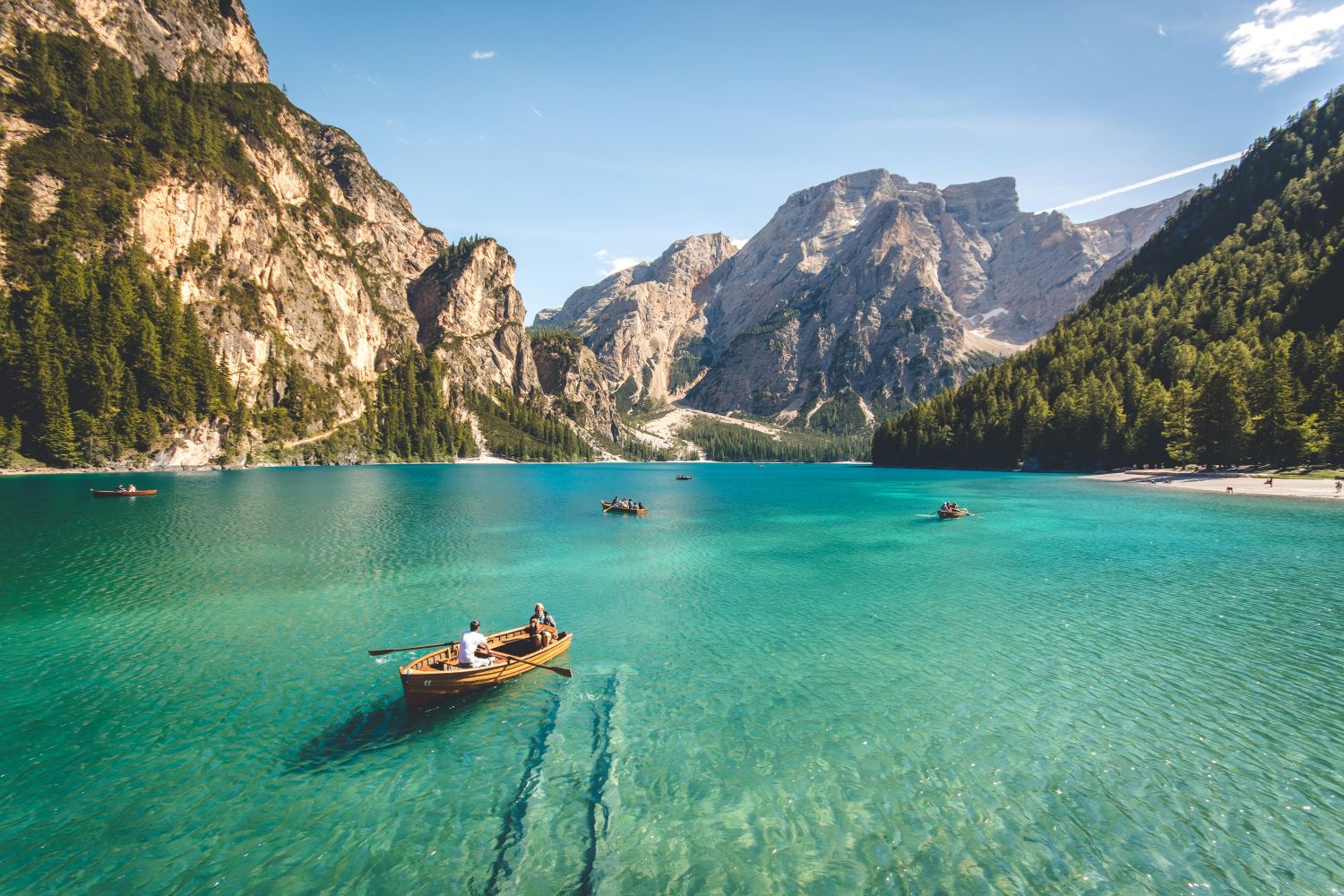
Want to bring your still photos to life? Homture's AI-powered Magic feature can turn any photo into a video with realistic animations. Whether it's a portrait, couple photo, pet picture, or scenic landscape, the AI creates natural movements that make your memories come alive on your digital frame.
In this guide, you'll learn how to use Homture's Magic tab to transform your photos into animated videos using AI technology.
What is Homture's Magic Feature?
The Magic tab in the Homture app uses advanced AI to analyze your photos and generate animated videos. The AI understands the content of your image and applies appropriate movements to create a lifelike video effect.
The feature offers 8 different templates designed for specific types of photos:
- Solo - For photos with 1 person
- Duo - For photos with 2 people
- Pets - For pet photos without people
- Scenery - For landscape and nature photos
- Mother's Day - Special template for mother-themed photos
- Rosy Dance - Artistic animation style
- Sparkle Waltz - Elegant animation effect
- Old Photo Alive - Repairs, colorizes, and animates old photos
How AI Turns Your Photo into Video
When you submit a photo, Homture's AI processes it through 4 stages:
- Image Preprocessing - The AI prepares and optimizes your photo
- Image Understanding - The AI analyzes the content, identifying faces, objects, and composition
- Matching Movements - The AI selects appropriate animations based on the photo content
- Video Generating - The AI creates the final animated video
Step-by-Step: Turn Photo into Video AI
Step 1: Open the Magic Tab
Launch the Homture app on your smartphone and tap the Magic tab at the bottom of the screen. This is where all AI video creation happens.
Step 2: Choose Your Template
Browse through the available templates and select the one that matches your photo type. Each template is optimized for specific content:
- Use Solo for single-person portraits
- Use Duo for couple or two-person photos
- Use Pets for animal photos
- Use Scenery for landscapes
- Use Old Photo Alive for vintage or black-and-white photos
Step 3: Select Your Photo
Tap the photo selection button and choose an image from your gallery. Make sure your photo meets the template requirements for best results.
Step 4: Wait for AI Processing
After selecting your photo, the AI begins processing. You'll see the message: "Your surprise is on its way, we'll let you know when it's here."
The app will notify you when your video is ready. This usually takes a few minutes depending on the complexity of the photo and current server load.
Step 5: Review Your AI Video
Once processing is complete, you can preview your animated video in the app. The AI will have added natural movements and animations to your still photo.
Step 6: Send to Your Frame
If you're happy with the result, tap "Select frames & send" to choose which Homture frame(s) should display your AI video. You'll see the confirmation: "Magic will show on the frame soon."
Understanding Magic Credits
Creating AI videos costs Magic Credits. Each video generation uses a certain number of credits from your account.
Tips for Best Results
To get the most impressive AI videos from your photos:
- Use high-resolution photos - Better quality input produces better output
- Match the template - Use Solo for 1 person, Duo for 2 people, Pets for animals only
- Good lighting - Well-lit photos work better than dark or shadowy images
- Clear subjects - Avoid blurry photos or images where faces are obscured
- Front-facing poses - Photos where subjects face the camera produce more natural animations
- Smiling expressions - For portrait templates, smiling faces create better results
Troubleshooting Common Issues
Video Generation Failed
If your video creation fails, check these common issues:
- Wrong template selected (e.g., using Solo template with 2 people)
- Photo quality too low or too blurry
- Faces obscured or not clearly visible
- For Pet template: people present in the photo
- Subject too small in the frame
Remember, your credits are automatically returned if generation fails, so you can try again with a different photo.
Video Not Showing on Frame
If your AI video doesn't appear on your frame:
- Ensure your frame is connected to Wi-Fi
- Check that you selected the correct frame when sending
- Wait a few minutes for the content to sync
- Try approaching the frame to trigger the proximity sensor
Conclusion
Turning photos into videos with AI on your Homture frame is a simple process that creates magical results. The Magic tab's 8 templates cover virtually any type of photo you want to animate, from family portraits to pet pictures to scenic landscapes.
The 4-stage AI processing ensures high-quality animations that look natural and engaging. With the proximity sensor feature, your AI videos will surprise and delight anyone who walks past your frame.
Start experimenting with different photos and templates to discover which combinations create the most impressive results. Your still photos have never been more alive.