-1.png?w=520&h=124)
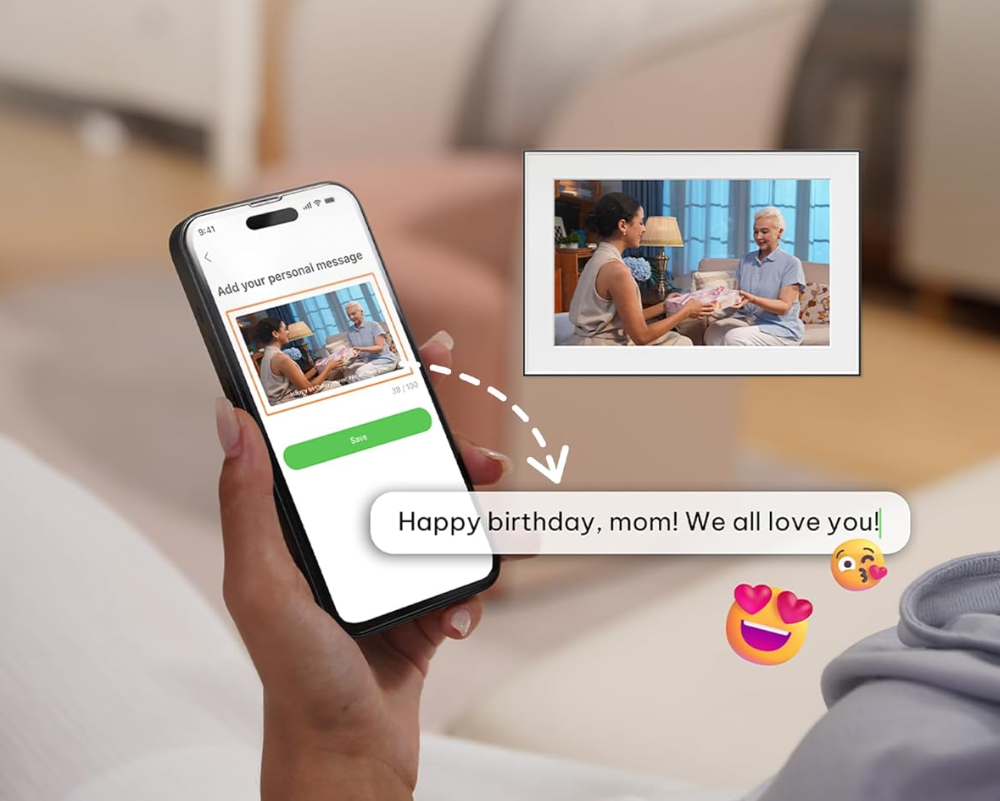
Your Android phone is packed with memories — photos of family, friends, pets, and special moments. With the Homture app, you can send those photos directly to your digital photo frame in just a few taps.
This guide will walk you through how to upload photos from your Android gallery to your Homture frame, including how to grant storage permissions, select multiple photos at once, and ensure your uploads sync successfully.
Table of Contents
What You'll Need
Before you start uploading, make sure you have:
- The Homture app installed: Download it from the Google Play Store if you haven't already
- An active internet connection: WiFi or mobile data (WiFi recommended for large uploads)
- Photos in your gallery: The photos you want to upload
- Your frame connected to WiFi: The frame needs to be online to receive photos
Granting Storage Access
The first time you try to upload photos, the Homture app will ask for permission to access your photos and media files. This is required so you can select and upload photos from your gallery.
What You'll See
When you tap the upload button, a permission prompt will appear:
"We need photo access so you can upload & share photos to your frame."
How to Grant Permission
- Tap Allow when the permission prompt appears
- On Android 13+, you may see options for "Photos and videos" or "All files" — choose the option that works for you
- The app will remember your choice for future uploads
How to Upload Photos
Once you've granted storage access, uploading photos is quick and easy.
Step-by-Step Instructions
- Open the Homture app on your Android phone
- Tap the Activity tab at the bottom of the screen
- Tap "Tap to upload" (or the upload button)
- Browse your gallery and select the photos you want to upload
- Tap Done or Select
- Wait for the upload to complete
What Happens Next
Once the upload finishes:
- Your photos appear in the Activity feed with "Uploaded by [your name]"
- The photos automatically sync to your frame via WiFi
- Family members with access to the frame can see your new photos
Uploading Multiple Photos at Once
You don't have to upload photos one at a time. The Homture app supports batch uploads, so you can select and send multiple photos in a single upload session.
How Many Photos Can I Upload at Once?
The app will show you the maximum number of files you can select per batch. This limit is dynamic and displayed as:
"You can select up to {maxCount} files"
The exact number depends on your device and network conditions, but it's typically between 20 and 100 photos per batch.
Tips for Batch Uploads
- Use WiFi: Uploading many photos over mobile data can be slow and use a lot of data
- Keep the app open: Don't switch apps or lock your phone during the upload
- Check your battery: Large uploads can drain your battery, so consider plugging in your phone
- Upload in chunks: If you have hundreds of photos, upload them in multiple batches
Viewing Your Uploaded Photos in the Activity Feed
After uploading, you can see your photos in the Activity feed.
How to Access the Activity Feed
- Open the Homture app
- Tap the Activity tab
- Scroll through the feed to see all uploaded photos
Each photo shows:
- The photo thumbnail
- Who uploaded it ("Uploaded by [name]")
- When it was uploaded
- Any likes or comments from family members
Troubleshooting Upload Issues
If you're having trouble uploading photos, try these solutions.
Upload Failed or Stuck
- Check your internet connection: Make sure you have a stable WiFi or mobile data connection
- Stay in the app: Don't switch to another app or lock your phone during upload
- Restart the app: Close and reopen the Homture app, then try again
- Reduce batch size: Try uploading fewer photos at once
Can't Select Photos
- Check storage permission: Go to Settings > Apps > Homture > Permissions and make sure Storage is enabled
- Update the app: Make sure you're using the latest version of the Homture app
- Restart your phone: Sometimes a simple restart fixes permission issues
Photos Not Appearing on Frame
- Check frame WiFi: Make sure your frame is connected to WiFi
- Wait a few minutes: It can take a few minutes for photos to sync to the frame
- Restart the frame: Unplug the frame for 10 seconds, then plug it back in
Frequently Asked Questions
Do I need WiFi to upload photos?
No, you can upload photos using mobile data. However, WiFi is recommended for large uploads to avoid using too much data and to ensure faster upload speeds.
Can I upload photos from my SD card?
Yes. If your Android phone has an SD card, the Homture app can access photos stored on it, as long as you've granted storage permission.
What photo formats are supported?
The Homture app supports common photo formats including JPG, JPEG, PNG, and HEIC. Most photos from your Android camera will work without any issues.
Can I upload videos?
Yes, the Homture app supports video uploads. The same upload process applies — just select videos from your gallery instead of photos.
Will uploading photos use a lot of battery?
Uploading a few photos won't drain your battery significantly. However, if you're uploading many photos at once, it's a good idea to plug in your phone or make sure you have enough battery.
Can I delete photos after uploading them?
Yes. Once photos are uploaded to your Homture frame, they're stored in the cloud. You can safely delete them from your Android phone's gallery if you need to free up space.
Final Thoughts
Uploading photos from your Android phone to your Homture frame is simple and fast. With just a few taps, you can share your favorite memories with family members, no matter where they are.
The best part? Everyone with access to the frame can upload photos too, creating a shared family photo stream that updates automatically. It's the easiest way to keep your digital frame fresh with new memories.