-1.png?w=520&h=124)
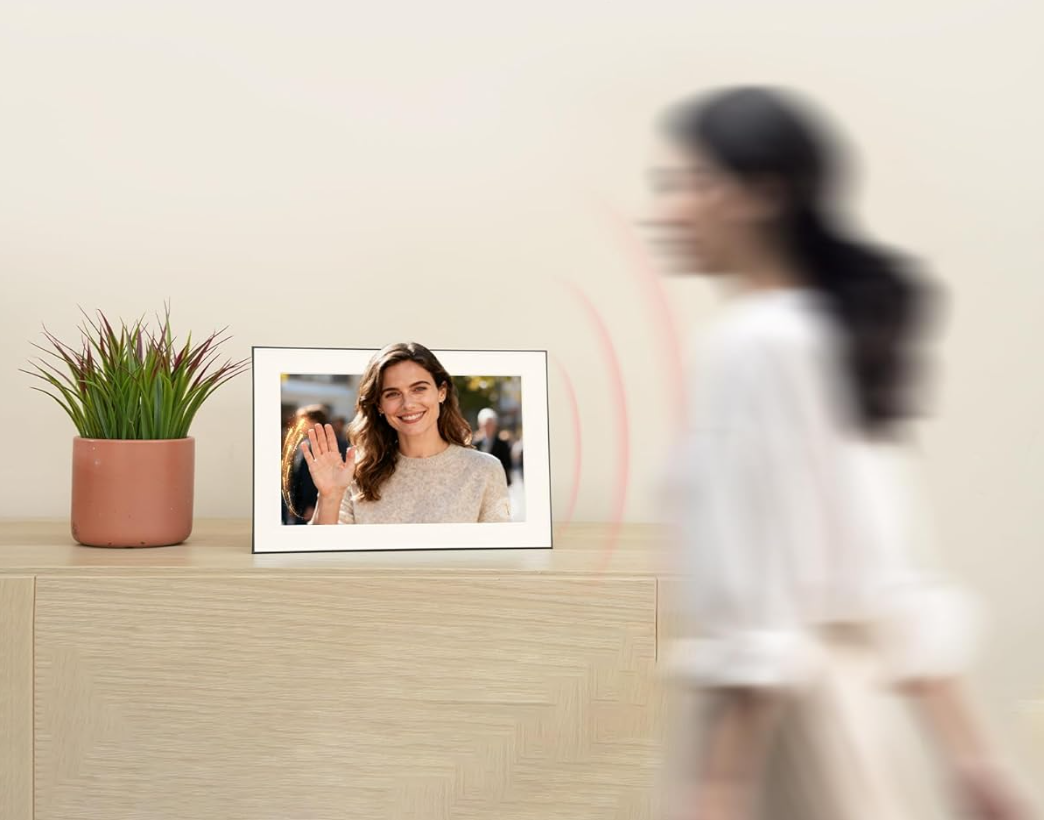
Got boxes of old printed photos sitting in storage? Those precious family memories deserve to be seen and shared, not hidden away. The good news is that digitizing your printed photos and displaying them on your Homture frame is easier than you might think.
In this guide, I'll walk you through three simple ways to scan your printed photos, how to upload them to your digital frame, and how to use AI to restore and colorize those faded old pictures. Let's bring those memories back to life.
Why Digitize Your Printed Photos
Before we dive into the how-to, let's talk about why scanning your printed photos is worth the effort.
Preserve them forever. Printed photos fade, tear, and deteriorate over time. Once they're digitized, you've got a backup that won't yellow or get damaged in a flood or fire.
Share them easily. Digital photos can be instantly shared with family members across the country. Upload them to your Homture frame, and everyone connected can enjoy those memories together.
Restore and enhance. With AI tools built into the Homture app, you can repair damaged photos, colorize black-and-white images, and even animate old portraits. It's like giving your old photos a second life.
Free up physical space. Once your photos are safely digitized, you can organize or even downsize your physical collection without losing the memories.
Three Ways to Scan Printed Photos
You don't need expensive equipment to digitize your photos. Here are three methods, from quickest to most detailed.
1. Use Your Phone Camera (Fastest)
This is the easiest way to get started. Your phone camera is surprisingly good at capturing printed photos.
How to do it:
- Place the photo on a flat, well-lit surface (natural light works best)
- Hold your phone directly above the photo to avoid distortion
- Make sure there's no glare or shadows on the photo
- Tap to focus, then take the picture
- Crop out any background in your phone's photo editor
Pro tip: Turn off your flash and use natural window light instead. Flash creates glare and washes out details.
2. Use a Scanning App (Best Balance)
Scanning apps are designed specifically for digitizing documents and photos. They automatically crop, straighten, and enhance your scans.
Popular scanning apps:
- Google PhotoScan (free, iOS & Android) — removes glare automatically
- Microsoft Lens (free, iOS & Android) — great for batch scanning
- Photomyne (free with premium option) — detects multiple photos at once
How to use a scanning app:
- Download the app and open it
- Place your photo on a contrasting background (dark photos on white surface, light photos on dark surface)
- Follow the app's on-screen guide to capture the photo
- The app will automatically crop and enhance the image
- Save to your camera roll
Why use an app? Scanning apps use algorithms to remove glare, correct perspective, and enhance colors automatically. They're especially helpful if you're scanning dozens of photos.
3. Use a Flatbed Scanner (Highest Quality)
If you have a lot of photos to scan or want the absolute best quality, a flatbed scanner is the way to go.
How to use a flatbed scanner:
- Place your photo face-down on the scanner glass
- Close the lid gently
- Open your scanner software (or use the scanner's buttons)
- Set the resolution to at least 300 DPI (600 DPI for small photos you want to enlarge)
- Scan and save as JPEG or PNG
- Transfer the files to your phone via email, cloud storage, or USB cable
Flatbed scanners produce the sharpest, most color-accurate scans. They're ideal for precious photos you want to preserve in the highest quality.
How to Upload Scanned Photos to Homture
Once your photos are digitized and saved to your phone's camera roll, uploading them to your Homture frame is simple.
Step-by-step:
- Open the Homture app on your phone
- Go to the Activity feed
- Tap "Tap to upload"
- Select the scanned photos from your camera roll
- Tap Send
Your photos will upload to the cloud and appear on your Homture frame within seconds. The frame's 10.1" 1080P display will show your scanned photos beautifully, bringing those old memories to life in vivid detail.
Pro tip: Homture accepts photos from any source — camera roll, scanned images, screenshots, downloads, you name it. As long as it's in your phone's photo library, you can upload it.
Using AI to Restore and Colorize Old Photos
Here's where things get really exciting. Homture's Old Photo Alive feature uses AI to repair, colorize, and even animate your vintage photos.
What Old Photo Alive Can Do
Repair damaged photos. Scratches, tears, faded spots — the AI can fill in missing details and restore clarity to damaged prints.
Colorize black-and-white photos. Turn those old grayscale family portraits into full-color images. The AI analyzes the photo and applies realistic colors based on context.
Animate portraits. Watch your ancestors smile and blink. It's a surreal, emotional experience to see old photos come to life.
How to Use Old Photo Alive
- Upload your scanned photo to the Homture app
- Select the photo in your gallery
- Tap the Old Photo Alive option
- Choose Repair, Colorize, or Animate
- Wait a few moments for the AI to process
- Save or send the restored photo to your frame
The results can be stunning. I've seen faded 1940s wedding photos transformed into vibrant, sharp images that look like they were taken yesterday.
Note: AI colorization works best on clear, well-scanned photos. If your original scan is very blurry or dark, try rescanning with better lighting first.
Tips for Best Scanning Results
Want to get the most out of your scanned photos? Here are some tips I've learned from digitizing hundreds of family photos.
Lighting Matters
Use natural, indirect light. Place your photo near a window but out of direct sunlight. Avoid overhead lights that create harsh shadows.
Keep It Flat
Curled or bent photos will look distorted in scans. Gently flatten them under a heavy book for a few hours before scanning.
Clean the Photo First
Dust and fingerprints will show up in your scan. Gently wipe the photo with a soft, dry microfiber cloth before scanning.
Scan at High Resolution
If you're using a scanner, set it to at least 300 DPI. For small photos (like wallet-sized prints), go up to 600 DPI so you can enlarge them later without losing quality.
Organize as You Go
Create folders on your phone or computer by year, event, or family member. It's much easier to organize as you scan than to sort through hundreds of unnamed files later.
Back Up Your Scans
Once you've digitized your photos, back them up to cloud storage (Google Photos, iCloud, Dropbox) or an external hard drive. Don't rely on just one copy.
Common Questions
Do I need to scan every single photo?
Not necessarily. Start with the most meaningful ones — family portraits, special events, photos of loved ones who've passed. You can always go back and scan more later.
What resolution should I use?
For most photos, 300 DPI is plenty. If you're scanning small photos (like 3x5 prints) that you might want to enlarge, use 600 DPI.
Can I scan photos that are in albums?
Yes, but it's easier if you remove them first. If they're stuck in old magnetic albums, gently peel them off. Use a hair dryer on low heat to soften stubborn adhesive.
How long does it take to scan a box of photos?
It depends on your method. With a phone camera or scanning app, you can scan 50–100 photos in an hour. A flatbed scanner is slower but produces better quality — expect 20–30 photos per hour.
Will scanning damage my photos?
No. Using your phone camera or a flatbed scanner won't harm your photos at all. Just handle them gently and avoid bending or creasing them.
Can Homture display very old, low-quality scans?
Absolutely. Homture accepts any photo from your camera roll, regardless of quality. And with the Old Photo Alive feature, you can even improve the quality using AI repair and colorization.
Final Thoughts
Digitizing your printed photos might seem like a big project, but it's one of the most rewarding things you can do for your family's memories. Once those photos are scanned and uploaded to your Homture frame, they'll be preserved forever and shared with the people who matter most.
Start small — pick a handful of your favorite photos and scan them this weekend. Upload them to your frame, try out the AI restoration features, and see how it feels to watch those old memories come back to life on your 10.1" display.
Your family's story deserves to be seen. Let's make sure it is.