-1.png?w=520&h=124)
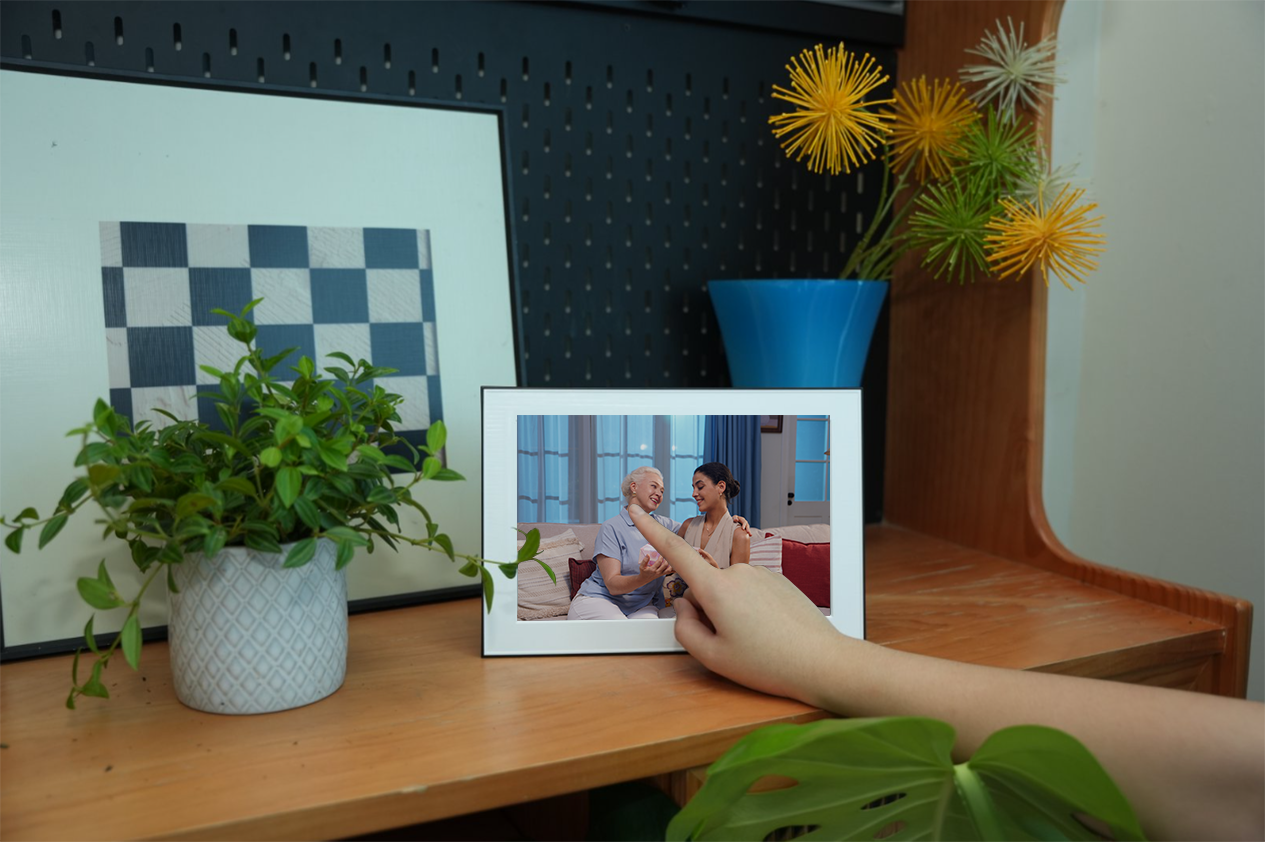
Ever wanted to share a specific photo with your family right now—not later, not in the rotation, but immediately? That's exactly what the Show Now feature is for.
Whether you just snapped a photo of your kid's first steps, your dog doing something hilarious, or a sunset you don't want anyone to miss, the show now feature on your Homture digital frame lets you push that photo to your frame instantly, from anywhere.
Here's how it works and when to use it.
What Is the Show Now Feature?
The Show Now feature is a remote control function built into the Homture app. It lets you pick any photo from your library and send it directly to your frame, where it will display immediately—jumping ahead of whatever slideshow is currently playing.
Think of it as a "play this song next" button, but for photos. Your frame might be cycling through hundreds of images, but when you tap Show Now, that specific photo takes priority and appears right away.
When to Use Show Now
The Show Now feature shines in moments when timing matters. Here are some scenarios where it's especially handy:
- Sharing fresh moments: You just captured a photo of the grandkids and want grandma to see it right now, not hours later when it randomly appears in the slideshow.
- Celebrating in real-time: It's someone's birthday, and you want their photo to be front and center when they walk into the room.
- Highlighting AI moments: You created a beautiful AI-enhanced video or colorized an old black-and-white photo, and you want your family to see it immediately.
- Curating the mood: You're having guests over and want to display a specific memory or theme that fits the occasion.
- Testing and previewing: You uploaded a batch of photos and want to check how a particular one looks on the frame before it cycles through naturally.
Basically, anytime you want to control what's on the frame right now instead of waiting for the slideshow to get there, Show Now is your tool.
How to Use Show Now
Using the Show Now feature is incredibly simple. Here's the step-by-step process:
Step 1: Make sure your frame is connected to WiFi
The Show Now feature works remotely via WiFi, so your frame needs to be online. If your frame is offline, the command won't go through. You can check the connection status in the Homture app or on the frame itself.
Step 2: Open the Homture app on your phone
Launch the app and navigate to your photo library. This is where all the photos you've uploaded to your frame are stored.
Step 3: Find the photo you want to display
Browse through your albums, AI moments, or recent uploads. Tap on the photo you want to show on the frame to open the photo detail page.
Step 4: Tap "Show now"
On the photo detail page, you'll see a "Show now" button or option. Tap it. That's it.
What Happens When You Tap Show Now
Once you tap the Show Now button, here's what happens behind the scenes:
- The app sends a command: Your phone sends an MQTT message to the Homture cloud, which then relays it to your frame.
- The frame receives the command: Your frame gets the instruction to jump to the target photo immediately.
- The photo displays: The frame switches to the selected photo, pausing the current slideshow. If someone is near the frame (within 5-6 feet), the proximity sensor will wake the screen automatically so they can see it right away.
- You get confirmation: The app will show a status message like "Photo displayed!" or "Showing on frame" to let you know the command went through.
The whole process takes just a second or two, assuming your frame has a stable WiFi connection.
Tips for Using Show Now Effectively
Here are some tips to make the most of the Show Now feature:
1. Use it for time-sensitive moments
Show Now is perfect when you want someone to see a photo right away. If you're sending a photo to a loved one and want them to notice it immediately, this feature ensures it won't get lost in the shuffle.
2. Combine it with the proximity sensor
The Homture frame has a proximity sensor that wakes the screen when someone walks by (within 5-6 feet). If you know someone is about to walk past the frame, tap Show Now just before they do—they'll see your photo as soon as they approach.
3. Test new uploads
After uploading a batch of photos, use Show Now to preview how they look on the frame. This way, you can make sure the cropping, colors, and quality are just right before they appear in the regular rotation.
4. Highlight AI moments
If you've used AI Magic to turn a photo into a video or colorized an old black-and-white image, Show Now is a great way to showcase that work immediately. Your family will appreciate seeing the transformation right away.
5. Create surprise moments
Imagine your partner is sitting near the frame, and you're at work. You can tap Show Now to display a sweet photo or message, creating a little surprise moment even when you're apart.
Common Questions
Can I use Show Now from anywhere?
Yes! As long as both your phone and the frame are connected to WiFi (they don't need to be on the same network), you can use Show Now from anywhere in the world.
Does Show Now interrupt the slideshow permanently?
No. After displaying your selected photo, the frame will resume its normal slideshow rotation. Show Now is a temporary override, not a permanent change.
What if the frame is off or in sleep mode?
If the frame is in sleep mode, the photo will be queued to display. As soon as someone approaches and the proximity sensor wakes the frame, your photo will appear. If the frame is completely powered off, the command won't go through until it's turned back on.
Can I use Show Now for AI moments?
Absolutely. The Show Now feature works for both regular photos and AI-generated content, including AI Magic videos and colorized photos.
How do I know if the photo was displayed?
After tapping Show Now, the app will display a confirmation message like "Photo displayed!" or "This photo will appear on your frame." If you don't see this message, check your WiFi connection and try again.
Can multiple people use Show Now on the same frame?
Yes. If multiple family members have access to the frame through the app, anyone can use Show Now. The most recent command will take priority.
Final Thoughts
The Show Now feature is one of those small touches that makes a digital photo frame feel truly smart and connected. It gives you control over what your family sees and when they see it, turning your frame into more than just a passive slideshow—it becomes a way to share moments in real-time, no matter where you are.
Whether you're highlighting a fresh memory, celebrating a special occasion, or just want to brighten someone's day with a favorite photo, Show Now makes it effortless. Give it a try next time you upload a photo, and see how it transforms the way you share memories with the people you love.